
Promo Campaigns Business
Needs a Business licence or higher.
Operator adverts (house ads and paid sponsorship) shown as a home card and/or a live-TV overlay by one engine on the web player, the MAG portal and the Android app. The button can open a web page (a QR code on TV), jump to a channel, open a film or series, open the account page, or be left off. Since 2.9.324 the page has three tabs: Campaigns, Bookings and Report.
On this page
- Find your campaigns
- Create a campaign
- Choose what the advert looks like
- Place and size it
- Aim it
- Give each viewer their own code
- Copy, pause and read the state
- Tune how often it is shown
- Test a campaign on yourself before going wide
- Read the results
- Sell a sponsorship
- See what is sold
- Restricted products
- Did it work?
- Let dismissers see it again
- Delete a campaign
- Record the broadcaster's consent (2.9.494)
- Video ads in Live+ ad breaks
- Watch out
Find your campaigns
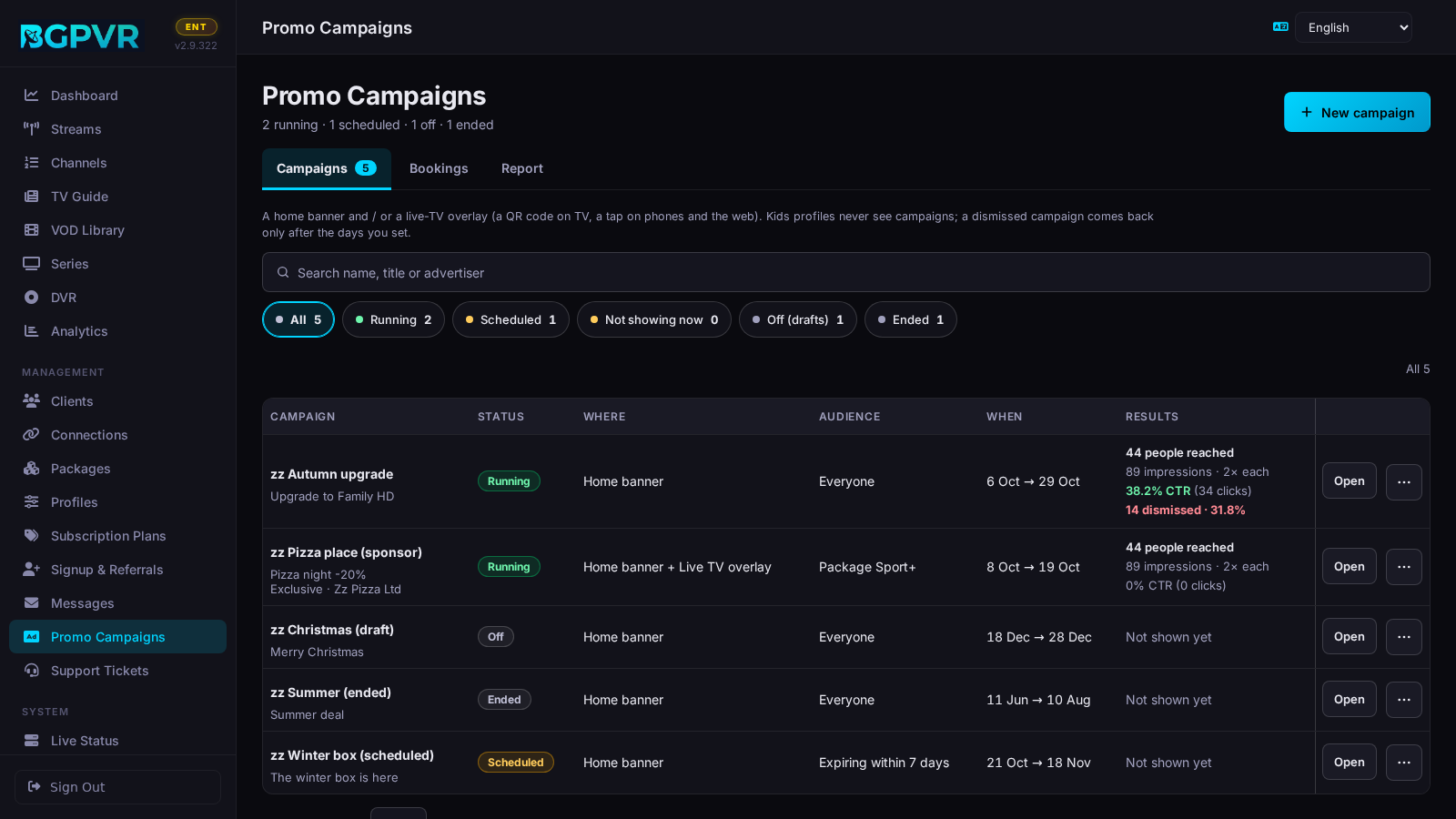
The line under the title counts them ("2 running · 1 scheduled · 1 off · 1 ended"). The chips filter by the state the server gives: Running, Scheduled, Not showing now (switched on, but outside its hours — "Off air now" — or past its impression limit — "Limit reached"), Off (drafts) and Ended. Each row shows the name and title, the state, where it shows, the audience in words, the dates and the results; Open, and ⋯ with Edit, Pause / Resume, Duplicate, "Let N dismissers see it again" (only when there are dismissals) and Delete… (asks first).
Create a campaign
"New campaign" opens the editor across the whole screen: five tabs over ONE form — What it says · Image & link · Where & when · Who sees it · Sponsor — with the preview on the right on every tab (under the form on a narrow screen). What it says: "Campaign name" (internal only), the "Live" switch (off = draft) and Title / Body / Button text in English and Bulgarian side by side (an empty Bulgarian field shows the English text). Image & link: drop an image on the drop zone, or click it (or press Enter on it) to browse (PNG/JPG/WebP, max 5 MB; GIF is also accepted); it is stored on your server and fitted to the screen without cropping; links to images on other sites are refused. "What the button does": Open a web page / Jump to a channel (channel ID) / Open a film or series (VOD or series ID) / Open their account page / Nothing — message only. Where & when: tick "Home banner" and/or "Live TV overlay" (at least one is required), then dates, hours and how often. The bar at the foot names every change; press "Create campaign" or "Save changes". A missing or wrong value opens its tab, marks the field and says why in the bar. Closing with changes asks "Discard changes?" in the page.
Choose what the advert looks like
Image & link → "What the advert looks like" = "Card — image, text and a button" / "Banner only — just the artwork" (the artwork is the whole advert, so it needs an image) / "Text only — no image" (it needs a title). The Sponsored label appears on every format and cannot be switched off.
Place and size it
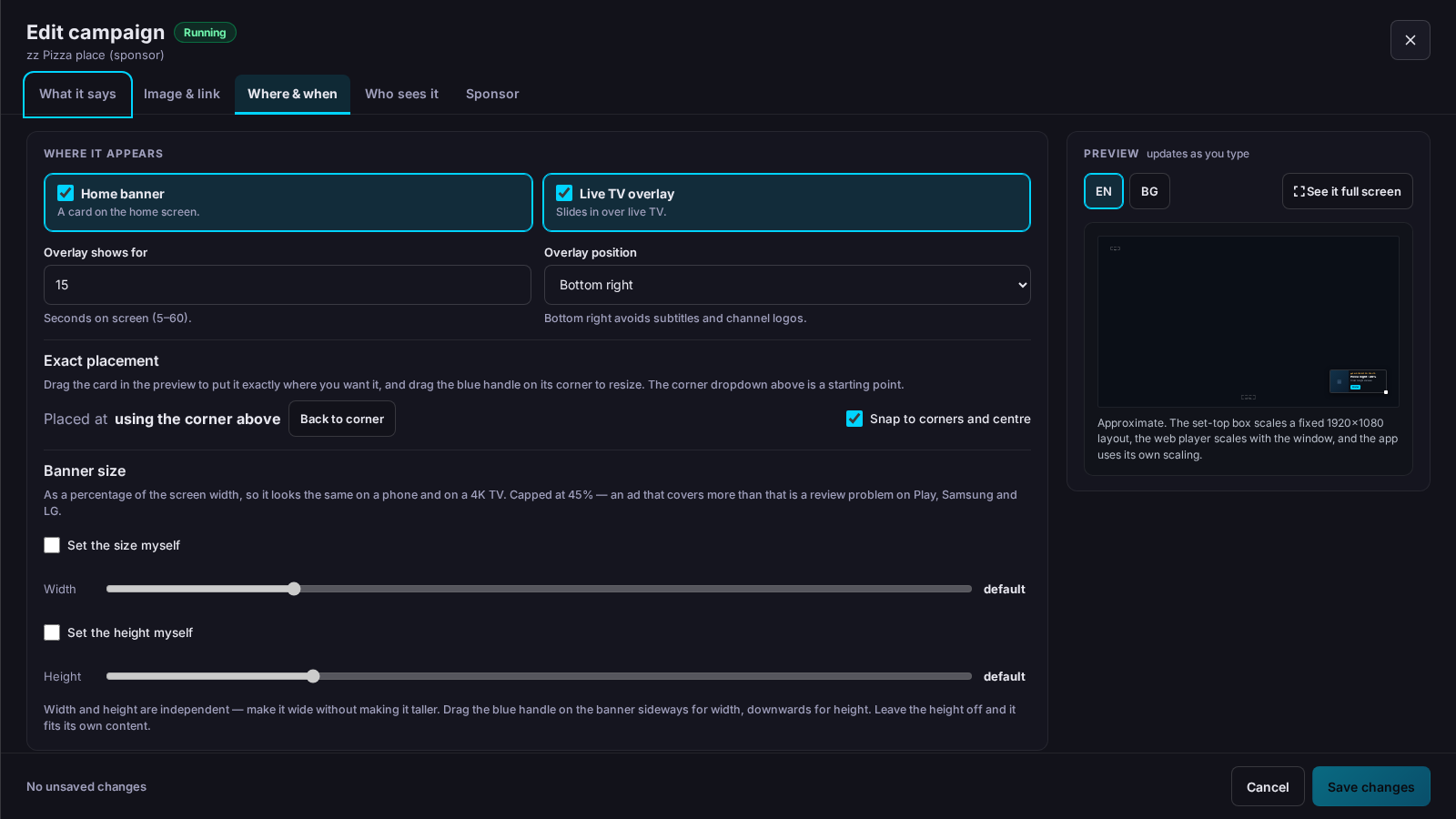
Where & when → "Overlay position" picks a corner. Under "Exact placement", drag the card in the preview and drag the blue corner handle to resize, with the width between 12% and 45% of the screen ("Snap to corners and centre", "Back to corner"). "See it full screen" (next to EN / BG above the preview) shows the true-to-scale preview; Esc closes it.
Aim it
Who sees it → Audience: Everyone, "One user only" (type the username — the field suggests your clients), "A specific package" (picked by name) or "Users expiring soon" (days). "Advanced targeting" → "Show it to" (package IDs — your packages are listed under the field —, account status, usernames, "Expires within (days)", "Already expired"; every rule you fill must match) and "But never to" (any match hides it); while it is on it replaces the simple audience. Where & when → "Only at certain times" takes days, a From / To window (a window that ends before it starts runs through midnight) and a time zone.
Give each viewer their own code
What it says → switch on "Give every viewer their own code" and put {code} in the title, body or button text. Each subscriber sees their own referral code there; the line under the switch says whether {code} is in the text, and the save is refused if it is missing.
Copy, pause and read the state
The state on each row reads Running / Scheduled / Off air now / Limit reached / Ended / Off. ⋯ → Pause / Resume switches it off or on. ⋯ → Duplicate makes a copy that starts switched off and has no results, and opens it in the editor.
Tune how often it is shown
Where & when → "Overlay shows for" = seconds on screen, 5–60 (only with Live TV overlay ticked); How often: "Show again after" = hours before the same viewer sees it again, 0 = every time; "If dismissed, bring it back after" = days, 0 = never again for that viewer; "Share of airtime" = weight 1–10 (a 3 is shown ~3× as often as a 1 when several campaigns are eligible for that viewer); "Stop after" = total impressions across all viewers, 0 = no limit. Who sees it → Devices: "Only show on" (TV / Android TV, MAG / STB, Phone / Tablet, Web browser) restricts by device class; tick none for everyone.
Test a campaign on yourself before going wide
Who sees it → Audience = "One user only (safe for testing)" and your own username. Only that account receives it. Switch back to "Everyone" when you are happy.
Read the results
Each row shows "N people reached" (distinct viewers — the number that says whether it spread), "N impressions · N× each", "x% CTR (n clicks)" — green from 5%, amber from 1% — and "n dismissed · x%" of the people reached, amber from 15% and red from 30%, which means the advert is unwelcome.
Sell a sponsorship
Sponsor tab → switch on "This is a paid advertisement" and fill "Advertiser" (required; viewers see "Paid for by <name>") and optionally "Advertiser website". For a sold slot switch on "Exclusive booking — this sponsor owns the slot": it needs an advertiser and an end date, and while it runs no other campaign appears in those placements, your own house ads included. Record the "Agreed price" in EUR, GBP or USD; it is never shown to viewers.
See what is sold
Bookings tab: each placement as a bar — Sold exclusively / Running, shares the slot / Free to sell — with the days free and the booked revenue for 30, 90, 180 or 365 days, and every booking listed under its bar (name, dates, price). Selling an overlapping exclusive slot is refused, and the error names the current holder.
Restricted products
Sponsor tab → "Product category" = Alcohol, Gambling / betting, Medicines or Other restricted product. Such a campaign only saves if "Only at certain times" starts at 21:00 or later. Tobacco adverts are refused.
Did it work?
Report tab: impressions, people reached, clicks, dismissals and conversions, impressions per day, and tables by campaign, placement and device, for 7, 30, 90 or 365 days. A conversion is a subscriber who clicked and then paid within the window you set (1, 7, 14 or 30 days) — correlation, not proof.
Let dismissers see it again
⋯ → "Let N dismissers see it again" appears once a campaign has dismissals. It deletes the dismissals for that campaign at once, without a question (nothing is lost: the advert only becomes visible again), and says how many were cleared. This is the fix after you dismissed your own test impression.
Delete a campaign
⋯ → Delete…, then "Delete campaign" in the page. It removes the campaign and every impression, click and dismissal of it — there is no undo and no export.
Record the broadcaster's consent (2.9.494)
Under Article 7b of the EU Audiovisual Media Services Directive, a broadcaster's programmes may not be overlaid with advertising without the broadcaster's consent. BGPVR therefore runs these formats only on Live+ channels and on channels for which you recorded that consent: the live formats (corner card, bottom band, L-shape, "presented by" on channel change) and pause ads over recordings and catch-up. The home banner, the screensaver and pause ads over films and series are not affected. Promo campaigns → Channel consent lists every package and channel and whether adverts can run over its programmes: "Yes: your own Live+ channel", "Yes: broadcaster's consent" (with who recorded it and when), "Yes: consent for <package>" or "No". The admin, or a staff login that manages settings, presses "Record consent…" on a channel or a package, ticks "I have the broadcaster's consent to show advertising over this channel's programmes." and confirms; who, when and the exact text are logged. Consent for a package covers every channel it holds, now and later. If you are the broadcaster of your own channel (not a Live+ one), your own decision is the consent. "Withdraw consent" stops these formats on it at the next request; the record stays in the log. A channel the app does not name gets none of these adverts: the BGPVR Player app names the channel for the live formats; recording and catch-up pause ads wait for an app that names it, and the web TV and MAG boxes show the live card again once they name the channel. The "not on these channels / programmes" rules of each format still apply on top of this.
Video ads in Live+ ad breaks
Ads in Live+ ad breaks are campaigns with the Video format. Mark a clip as Ad in Live+ › Library (5 seconds to 2 minutes), then Promo campaigns → new campaign → Video in Live+ ad breaks (or Make a campaign in Live+ › Ad breaks) and choose the clip under The video. The format has one placement, Live+ ad breaks, and stands alone on its campaign; the clip is the whole ad, with no text, artwork or link of ours on it. Dates, hours, weight and exclusive sponsor work as for every campaign. Alcohol and betting run only between 21:00 and 06:00 by your local time. A paid ad names the advertiser. Under Live+ rules you can limit the campaign to chosen Live+ channels, keep it off some, keep it off some programmes and set the gap before the same ad again. Preview shows a Live+ break; the list shows airings, shown and completed. Counts only, no viewer data. A campaign change fills the next 48 hours of breaks again, and a stopped campaign never airs: its time plays your house collection or the “We’ll be right back” card. Needs Business or Enterprise.
Watch out
- Business tier, enforced server-side. Without it the list still loads with an amber "Promo Campaigns is a Business-tier module" notice and every client endpoint returns an empty promo list, so campaigns simply never appear. Only creating is blocked with a 403 — editing and deleting existing campaigns still work after a downgrade, they just are not delivered.
- "If dismissed, bring it back after = 0" is permanent for that viewer: one mis-tap and they never see the campaign again, not after an edit, not after a relaunch. Leave it at 30 (the default) unless you mean it.
- Set-top boxes use the same engine as the app and web player, so every setting applies there too. Adverts only draw on MAG/TH boxes running portal 2.0.24 or later (24 Sep 2026): earlier portals silently showed nothing, so restart older boxes to pick up the new portal.
- Kids profiles never receive adverts. The server enforces this for every app and box, and an unrecognised profile is treated as a child's.
- Subscribers can switch promotions off for free, or pause them for 1, 3 or 6 months, on their account page under Privacy, and can see every promotion they were shown and why. Opted-out accounts are excluded on every device, so expect reach to shrink.
- On TVs (the web player in the TV's browser) and MAG boxes on portal 2.0.24, a live advert is one white-framed card with one big button: OK presses it and Back closes it. On MAG, OK is taken only while the video is full screen. The LG package installed from /lg.ipk carries an older copy of the player and shows the older card.
- The Android app currently shows only unpaid campaigns in the Card format. It skips paid and banner/text campaigns, uses a fixed corner, ignores channel, film and account buttons, and crops the artwork to fill its frame, so keep text away from the image edges.
- Kodi, Enigma2 and Xtream Codes players never show adverts.
- Device class is guessed from the User-Agent and is deliberately coarse. The Flutter app reports dart:io and is classified "mobile" unless a TV marker matched first, so "Phone / Tablet" targeting can still hit Android TV boxes — verify before running a hardware ad that must not reach TV users.
- "Show again after" (frequency cap) is applied to the live overlay only. On the home placement the only limiters are dismissal, the impression cap and rotation, so a home banner can reappear on every home visit.
- Uploaded artwork is stored under the data dir (promo_images), served from /promo_img/ and saved as a relative URL that is made absolute per request; when the proxy does not send X-Forwarded-Proto the code assumes https for any non-local hostname. A campaign with a broken image URL renders with the image silently hidden, not an error.
- Start / End are stored as the server's local date and time (unlike Messages, which are kept in UTC) and both must be satisfied — an End in the past makes the campaign vanish even with "Live" on.
- Staff accounts need the manage_promos permission; without it the sidebar entry is hidden and every /api/promos call returns 403.
- The software covers disclosure, children and category rules. Whether your service must register with the Council for Electronic Media (СЕМ), and your lawful basis for targeting third-party paid adverts, are yours to settle.
- On pause (2.9.373): a third placement, "On pause (full screen)", under Where & when. In the app (from BGPVR Player 1.8.7), when a viewer pauses a recording, film, episode or catch-up and nothing else is on screen, the campaign fills the screen after "Show after paused for" seconds (10 by default, 5 to 120): its artwork as the background, the logo (Image & link → "Upload logo"), the title and body in the viewer's language, an "Ad" label ("Paid for by …" on paid campaigns) and, on a TV, a QR code of the link. Any button or tap removes it; Play or OK also resumes playback. "At most once every (minutes)" counts every on-pause campaign together, per viewer (30 by default). "Show in" limits it to recordings, films, series or catch-up (nothing ticked = all; catch-up = recordings you share with everyone). The link must start with https:// because it becomes a QR code; a scan goes through your own server (
/api/client/promos/…/go/…) and counts as a click. Never on live TV and never on kids profiles. Older apps, the web player and MAG boxes do not show it. - Ad formats and the new editor (2.9.373): a campaign now runs as one or more formats, ticked on the editor's first step, "Formats": Live · L-shape (the live picture shrinks to 75, 66 or 50 % in the top-left or top-right corner for 10–20 seconds and the advert fills the L around it; the sound stays on), Live · corner card or Live · bottom band, Live · "presented by" on channel change (under the loading animation, only while a channel tunes), Pause · brand background (with the paused frame when there is no picture), Pause · on a phone, Home banner and Screensaver. The steps are Formats → Creative → Where & when → Who sees it → Sponsor → Review. Upload one picture and click its focal point: every format is cropped from it. The text counters show the room in the tightest format you ticked, and a save that does not fit says which field. The big preview switches format and device (TV, MAG, phone, tablet, web, LG), speaks EN or BG, opens full screen, and "Check all" shows every format on every device with warnings. Under Where & when each format can have its own cap and "not on these channels / during programmes containing". The list shows each campaign's formats and its views and clicks per format. MAG boxes and the web TV show the home banner and the live card only; the LG TV app shows no adverts until "LG TV app: show ads" is on (
/api/promos/settings). - No plan or payment links in the apps (2.9.494): App Store and Google Play do not allow an app to send viewers to plans or payment. A campaign that can reach the apps (any placement, unless Who sees it › devices is only Web browser and / or set-top boxes) is refused when its button opens My Account ("Open their account page") or links to this server's My Account, signup, checkout, plans or pricing pages, including #plans / #signup links. Put the offer on your website and link to that page instead, or show the campaign only on the web player and MAG boxes. Links to other sites are not affected.