Signup & Referrals
How people join and sign in, on one page with five tabs: Ways to join (the four public sign-up routes on /invite and /signup — invite code, free trial, paid plans and free tier — each with its switch and its settings, and what happens when the paid time runs out), Invites (the invite codes, moved here from Clients in 2.9.323), Referrals (the referral programme, who brought friends, recent rewards), Protection (the email check, trials per person, CAPTCHA, the locker mode for new sign-ups) and Sign-in methods (Google, Apple, passkeys and the e-mail sign-in link for viewers in My Account, since 2.9.390). The master on/off for public sign-up is in Modules → Registration; the Terms & Conditions box is set in Settings → Clients.
On this page
- See what is open at a glance
- Open or close the signup routes
- Save, discard or leave
- Configure trials
- Sell plans on /signup
- Decide what happens when a subscription expires
- Harden signups
- Hand out invite codes
- Require acceptance of your Terms & Conditions
- Publish a new version of your Terms & Conditions
- See what a customer accepted and export the proof
- Run the referral programme
- Banked free days (the subscriber's "Безплатни дни")
- Let viewers sign in with Google, Apple, a passkey or an e-mail link (2.9.390)
- The BGPVR Player app signs in with these ways too (2.9.399)
- Sign-in in the apps (no set-up) (2.9.481)
- Sample wording for your own privacy notice (2.9.390)
- Redeem invite codes on My Account (2.9.391)
- Safer TV sign-in with a code (2.9.409)
- Kids controls, checked on the server (2.9.434)
- Family members: own sign-ins on one account (2.9.431)
- Each device has its own stream sign-in; Kids devices are checked on the server (2.9.413)
- Google and Apple in the apps: the My Account address and linking (2.9.485)
- BGPVR Player is a player: sell plans on the web (2.9.494)
- Watch out
See what is open at a glance
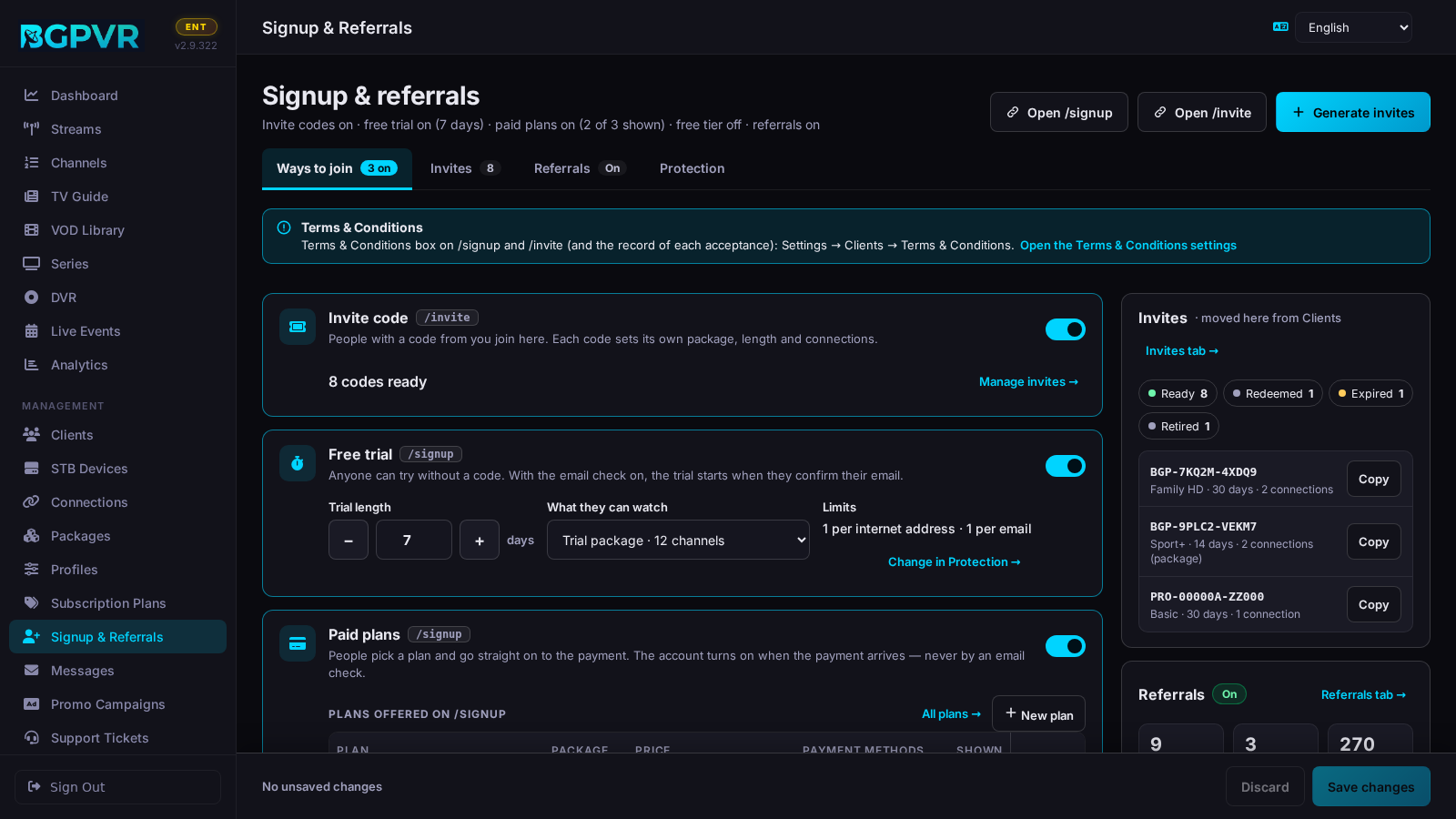
The line under the title says what is on, as saved: "Invite codes on · free trial on (7 days) · paid plans on (2 of 3 shown) · free tier off · referrals on" (it starts with "Sign-up closed in Modules" while the master switch is off, and the Ways to join tab says so in a warning with "Open Modules"). "Open /signup" and "Open /invite" open the public pages in a new tab. The tabs carry counts: how many ways are on, how many invite codes are ready, whether referrals are on.
Open or close the signup routes
Ways to join: one card per route, each with its switch: "Invite code" (/invite, on by default: people with a code from you), "Free trial" (/signup, no code needed), "Paid plans" (/signup: people pick a plan and go straight on to the payment; the account turns on when the payment arrives, never by an email check) and "Free tier" (/signup: free channels with no end date, from the free package). A switch is a change like any other: it waits in the save bar until you press "Save changes".
Save, discard or leave
Ways to join, Referrals and Protection are ONE form with ONE save bar at the bottom of the page. It names what you changed ("2 unsaved changes: Free trial, Trial length"), says who it affects ("applies to new sign-ups only", "applies to every account whose time runs out"), puts a dot on the tab that has changes and marks each changed field "Changed — not saved yet". "Save changes" sends only those values, each to its own place (the sign-up settings, the referral settings, a plan's Shown switch): a part that is refused stays marked and the bar says why, while the rest is saved. A number outside its range is not sent: the field is marked and the page goes to its tab. "Discard" asks, then puts back the saved values. Leaving the page, or closing the browser tab, with unsaved changes asks first ("Discard changes?" / Keep editing).
Configure trials
Ways to join → Free trial: "Trial length" (− / +, 1–365 days, default 7) and "What they can watch" (the trial package by name with its channel count, or "No package"). The card repeats the limits set in Protection ("1 per internet address · 1 per email"). Protection → "Trials per person": "Trials per internet address" and "Trials per email address" (1 each by default, 0 = no limit). The per-email limit counts every trial ever granted to that address, including deleted accounts, which are kept only as a salted hash — deleting an account and signing up again does not earn a new trial. With the email check on, the trial clock starts when the customer confirms, not at signup.
Sell plans on /signup
Ways to join → Paid plans lists the plans with their package, price and length, payment methods and a "Shown" switch each: a hidden plan is not offered to new people (who bought it keeps it). The switches are saved with the save bar. "All plans →" opens Subscription Plans; "New plan" and Open open the plan editor right here. Without the "Manage Packages" permission the table is read-only. With paid sign-up on and no plan shown, the card warns that there is nothing to buy. On a phone the plans are shown as a list so the price and the Shown switch stay readable. A "Manage packages →" link sits by each package menu (trial, free tier and the friend's package) for staff who may manage packages.
Decide what happens when a subscription expires
Ways to join → Free tier: "Free package" (or "None — no free package") and "When the paid time or a trial runs out": "Lock the account" (nothing plays until they renew) or "Move them to the free package" (they keep the free channels). This one rule is applied by the server to every account, on every device — app, MAG/Stalker and Kodi/HTSP alike. Without a free package expiry always locks, and the card says so; with free sign-up on and no free package, /signup refuses free sign-ups and the card warns.
Harden signups
Protection: "Ask new people to confirm their email address" (free-trial and free accounts start only after the link in the email is opened; paid sign-ups wait for their payment instead; needs email (SMTP) set up in Settings → Email), "CAPTCHA on /signup": None or Cloudflare Turnstile, with the site key and the secret key (the secret is stored hidden and shows as ******** — leave it as it is to keep it), and "Security locker for new sign-ups": Your default, Off, Log only, Learning, Secure or Strict (for accounts made on /signup; an invite code carries its own). When the CAPTCHA check fails (some private relays break it), the sign-up is not refused: the person has to confirm the email address instead.
Hand out invite codes
Invites tab (moved here from Clients in 2.9.323; the Clients tab bar keeps a link "Invite codes → Signup & referrals"). "Generate invites" (top right, on every tab) opens a side window: How many (1–50), Code prefix (up to 6 letters or digits: PREFIX-XXXXX-XXXXX), Code valid for (the days an unused code stays valid, default 30), then the account each code makes: Package, Transcode profile, Account length (days after redemption; 1–7 for a trial), Connections at once or "Use the package's number", Features ("Use the package's features", or Timeshift / Recordings / Films & series one by one) and "Where they can watch from" (System default, Off, Log only, Learning, Secure, Strict, Excluded). The new codes are shown with the redemption page https://<host>/invite and "Copy all"; ready codes stay in the list, with Copy, until someone uses them. The list: chips All · Ready · Redeemed · Expired · Retired with counts, a search over code, the status word you see (Ready, Redeemed, …), customer, IP address, package, profile and locker mode, Sort (Newest, Status, Expires, Redeemed), 25 / 50 / 100 a page; with more than 500 codes a note says only the newest 500 are listed, counted and searched. Ways to join shows the three newest ready codes by their hint only (so a screenshot of the settings carries no live code); Copy still copies the whole code, and the full ready code is shown on the Invites tab as before. Each row's ⋯: Copy code, Open the customer (a redeemed code), and last "Retire code…" for a redeemed code (it moves to Retired; the account keeps working) or "Delete code…" in red (nobody can join with it afterwards), confirmed in the page. "Clean up…" removes expired unused codes and, if you switch it on, deletes accounts made from an invite whose time ran out more than N days ago (default 7); accounts watching now are skipped.
Require acceptance of your Terms & Conditions
Settings → Clients → "Terms & Conditions". Nothing is asked until three things are true: your own website address is set in Settings → General → Public Website (your terms page is that address + /terms.html, your privacy policy that address + /privacy.html), "Require acceptance at sign-up" is ticked (the default), and you have published a first version (see the next entry). From then on, new customers who sign up on /signup (free trial, free account, paid plan) or redeem an invite or referral code on /invite must tick "I accept the Terms & Conditions and have read the Privacy Policy" (never pre-ticked; the links open in a new tab). The Terms & Conditions link opens the exact text of the current version as this server stored it, with its SHA-256 fingerprint and "Download this text"; your own page is linked from there. The server refuses the account without the tick, and a paid sign-up is recorded before the payment starts. "Existing customers": with "Ask once, on their next My Account visit" (the default), a customer without an acceptance of the current version sees a card in My Account: Accept or Sign out (a customer who did not sign in with the password in that browser types it on the card). With "Don't ask customers who joined before the first version", only accounts made after it that have no acceptance at all are asked, for example accounts you create in the console or through the Integration API, which are never asked when they are created. Apps and playback are not blocked either way. "Also ask for an age confirmation" adds a second box with a "Minimum age" (18 by default); if the date of birth given at sign-up or on file is under it, the box can't be confirmed. Under "Wording (EN + BG)" you can change the text of both boxes ([terms]…[/terms] and [privacy]…[/privacy] become the links). Untick "Require acceptance at sign-up" (or clear the website address) to switch it all off: sign-up then works as before and nothing is recorded.
Publish a new version of your Terms & Conditions
Admin only. Update the terms page on your website first. Then, in Settings → Clients → "Terms & Conditions", type a label under "New version label" (today's date is suggested; letters, digits, spaces and . _ - : ( ), up to 40 characters) and press "Preview". The server reads your terms page now (only from your own website's address and port, or over https from a public address; never from this machine itself) and shows what it would keep: the number of characters, the SHA-256 fingerprint, the start of the text, what changed against the current version, and warnings (a short text, something that looks like an error or sign-in page, a text mostly different from the current one). If the page can't be read, use "Paste the text instead" and "Preview the pasted text". Nothing is stored until you press "Publish version …"; if the page changed in between, you get a new preview to check first. A text identical to the current version is refused. From then on customers accept the new version and, with "Ask once…", existing customers are asked again in My Account. "Compare with your website" shows later whether your website's page still matches the current version; if it doesn't, publish a new version. "Withdraw" removes a version nobody has accepted (a mistaken publish); if it was the current one, the previous version becomes current again. A version someone has accepted can never be changed or removed.
See what a customer accepted and export the proof
The client window shows "T&C: accepted version … on … via …" or "not accepted", with History (time, how, version and fingerprint, age statement and, for the admin, IP address and browser) and a link to the text of each version. Every acceptance keeps: the account and its username at that moment, the version and the SHA-256 fingerprint of its text, the time (UTC), how (free-trial, free-account or paid-plan sign-up, invite or referral code, My Account, or recorded by staff), the IP address and browser, the page language, the exact wording of the box or boxes ticked, the age statement, whether My Account was opened with a password sign-in, and a fingerprint chained to the record before it. If a customer accepted on paper or in your shop, admins and staff with "Manage Clients" use "Record acceptance…": choose the version the customer signed and say where the form is kept; their login name, IP address and browser are saved with it. Nobody can edit or delete an acceptance: it is deleted only together with the account, and that deletion is logged (which records, when, by whom). "Check the records" re-checks every fingerprint and link and the text of every version. "Download all acceptances (CSV)" (admin only) gives the whole record, one line per acceptance, with times in UTC and both fingerprints; keep the downloaded files, because a later change to the database would no longer match them. The "Change log" lists every Terms & Conditions setting change, publish, withdrawal, website address change and CSV download, with who and when.
Run the referral programme
Referrals tab: "Referral programme" on / off; "The customer gets" N days (banked in their free-days bank when a friend joins with their code on /invite), "The friend's account starts with" N days (30 until you save another number; 0 = 30 days), "Friends per customer" (0 = no limit), "Package of a friend's new account" (no package: the friend's account has no channels until you give it one) and "Packages that take part" (only customers on these packages earn or use referral days; none ticked = every package; keep the free package unticked). Saved with the save bar. Below: the numbers (friends joined, customers who brought friends, bonus days given, codes made; if they cannot be loaded, an inline "could not load · Try again"), "Who brought friends" (chips Brought friends / All codes, a search by name or code; the code, friends, days earned, the free days in their bank now, Open → the client; with more than 500 codes a note says only the newest 500 are listed and searched) and the recent rewards.
Banked free days (the subscriber's "Безплатни дни")
Referral days, and gift days given to a lapsed account, wait in the account's free-days bank. The subscriber spends them in My Account → Subscription → "Използвай сега" (Use now) whether or not the referral programme is on, or a purchase adds them automatically. Renewing with an invite code or changing the date in the console does not spend them. Spending adds them to the later of today and the current expiry date and turns an "expired" account back to active; a disabled, banned or pending account is refused, an account that never expires keeps its days, and an account with no package to extend is told the days come with a plan.
Let viewers sign in with Google, Apple, a passkey or an e-mail link (2.9.390)
Signup & referrals → Sign-in methods (the fifth tab). These are extra ways for viewers to get into My Account: the username and password keep working everywhere, and staff, the console and the License server never sign in this way. Each method has its own switch, and all four are off after the upgrade. Google, Apple and passkeys work only on your My Account address (Settings → Look & brand → Public website card → "My Account address"), which the tab shows at the top. Google: in Google Cloud, open Google Auth Platform. Under Branding give the app name, a support e-mail, your home page and the link to your privacy policy (on the same domain as the home page); under Audience choose External; under Data access add only the scopes openid, email and profile. Under Clients press "Create client", choose "Web application" and, under "Authorised redirect URIs", paste the address from this tab's "Authorised redirect URI" field (Copy): https://<My Account address>/api/client/oauth/google/callback. Paste the Client ID and the Client secret here and save (Google shows the whole secret only once, when the client is made). Press "Test sign-in", sign in with any Google account in the new tab and wait for "Google sign-in works for" your address; then switch Google on and save. To show your app name and logo on Google's screen to everyone, publish the app under Audience and pass Google's brand verification (your domain verified in Google Search Console, a public home page and the privacy policy on that domain). Apple: in Apple Developer → Certificates, Identifiers & Profiles → Identifiers, tick Sign in with Apple on your app's App ID (the primary App ID) and save. Then + → Services ID, register it, open it, tick Sign in with Apple and press Configure: choose that primary App ID and, under Website URLs, add the domain of your My Account address and the "Return URL" from this tab: https://<My Account address>/api/client/oauth/apple/callback. Done, Continue, Save. Then Keys → +: a key with Sign in with Apple, configured for the same primary App ID. Download the .p8 file (Apple lets you download it only once). Here: upload the .p8 under "Private key (.p8)", type the Team ID (Apple Developer → Membership details), the Key ID and the Services ID, save, press "Test sign-in" and switch Apple on after the test passes. Then, in Apple Developer → Services → Sign in with Apple for Email Communication → Configure, add the domain the suite sends e-mail from (or the sending address) under Email Sources. Mail from it must pass SPF and be signed with DKIM for that domain; otherwise e-mails to viewers who hid their address with Apple bounce. Passkeys: switch on and save; there is nothing to set up. A passkey works only on the address it was made on, so if you change the My Account address later, every existing passkey stops working: viewers sign in another way and add a new one. E-mail sign-in link: switch on and save. It needs outgoing e-mail (Settings → Email), and the card says when that is not working. A link works once, for 15 minutes, in the browser that asked for it; the e-mail also carries a 6-digit code for when the viewer reads it on another device. Viewers see the switched-on methods on the My Account sign-in and register screens and on /signup, and manage them in Account → Sign-in methods. The client window → Security lists how a client signs in, with Remove for a lost phone or Google account.
The BGPVR Player app signs in with these ways too (2.9.399)
From app 1.9.3 the app's first start offers the same ways you switched on here: it opens your My Account address in the phone's secure browser window, the viewer signs in there (Google, Apple, a passkey or an e-mail code, or the password), and the window hands the app a one-time code that only that app can use (2 minutes, once). Nothing to set up beyond this tab and a My Account address in Settings; without them the app shows the password sign-in only. New accounts are still made only through your own sign-up rules. On iPhone the app leaves Google out while Apple is off (see below).
Sign-in in the apps (no set-up) (2.9.481)
Signup & referrals → Sign-in methods has one more switch under Google and one under Apple: "Sign in with Google in the apps (no set-up needed)" and "Sign in with Apple in the apps (no set-up needed)". Both are off after the upgrade. They use the BGPVR Player app's own Google and Apple sign-in, so there is no Client ID, key or test to set up, and they work even when the web Google or Apple switch above is off. On Android phones and tablets the app uses the Google account already on the device, with no Google password. On iPhone, iPad and Apple TV it uses the Apple Account on the device, with Face ID or the passcode. Android TV and Fire TV keep the phone or QR sign-in. Google arrives with the next BGPVR Player update for Android and Apple with the update for iPhone, iPad and Apple TV; older apps ignore the switches. The line under each switch says "Works without set-up" and counts the viewers who signed in this way. The first time a viewer signs in this way, the account joins by itself if Google or Apple confirm the same e-mail address the account already confirmed: the viewer is signed in and gets an e-mail that a sign-in was added. Otherwise the app asks for that account's password once. If several accounts use the e-mail, it asks for the username and password of the right one. If there is no account, the app offers your sign-up option, when you have one. Viewers who linked Apple on your web sign-in under your own Apple team link once more in the app. Each way is its own row, with its own Remove, in My Account → Account → Sign-in methods ("Apple (in the app)" is the app's Apple). A viewer who used Sign in with Apple and deletes the account should also remove BGPVR Player in Settings › Apple Account › Sign in with Apple; My Account tells them.
Sample wording for your own privacy notice (2.9.390)
Sample wording for your own privacy notice (adapt it and keep only the methods you switch on; it is not legal advice): Signing in with Google, Apple, a passkey or an e-mail link. If you sign in with Google or Apple, they send us your name, your e-mail address, whether they have checked it, and an account number that identifies you to us. We never receive your Google or Apple password. In the BGPVR Player app, the app receives the sign-in token from Google or Apple (your name, e-mail address and account id) and passes it only to our server; BGPVR Software, which makes the app, keeps no copy. If you hide your e-mail address with Apple, we get an address from Apple's private relay service, which forwards our e-mails to you. If you add a passkey, we keep only its public key, its name and when it was added and last used; your fingerprint or face scan is checked on your device and never leaves it. If you ask for a sign-in link, we e-mail you a link that works once, for 15 minutes, with a 6-digit code. We use all of this only to sign you in and to tell you by e-mail when a sign-in method is added to your account, and we do not give it to anyone. We keep it until you remove the method or your account is deleted; an unfinished sign-in expires after at most 15 minutes and is then deleted. You can remove a method at any time in My Account › Account › Sign-in methods, or ask us to. When you unlink Apple or delete your account, we ask Apple to cancel the sign-in token it gave us. Legal basis: providing the sign-in you chose (contract), and our legitimate interest in keeping accounts secure for the e-mail we send when a method is added.
Redeem invite codes on My Account (2.9.391)
Viewers redeem invite and referral codes on My Account's sign-in page: "Redeem an invite" turns the card into the invite form on the same page (its own address is /account#invite), with the fields of the old /invite page (code, username, password, e-mail, name, MAG MAC), your Terms & Conditions boxes while they are in use, and the account's details after it. Old links keep working: /invite and /invite?code=… on e-mails and printed cards, and /ref/… referral links, open that form with the code filled. With Google or Apple sign-in on, the viewer can continue with them from the form and the code goes along. With invite codes off here (or Modules → Registration off), the form says new accounts can't be made right now.
Safer TV sign-in with a code (2.9.409)
The TV code is now 8 characters, shown like ABCD-EFGH (no 0, O, 1 or I); viewers may type it with or without the dash, in capitals or not. BGPVR Player 1.9.3 and later get a sign-in of their own when the code is approved, through My Account (Activate a TV or the QR) or the viewer's phone app: it is listed under the viewer's devices, can be signed out there, and the TV shows "Signed in as …" with Not you? Sign out. Older apps (1.8.x, 1.9.2) keep signing in with a code approved in My Account, the way they always have, while Signup & referrals → Protection → Older TV apps may sign in with a code is on (the default). Switch it off once your viewers have updated: older apps then sign in on the TV with their username and password, and My Account says the app on that TV needs an update. A wrong code counts against the address that typed it (20 in 10 minutes), and the web player's 4-character pair code works as before.
Kids controls, checked on the server (2.9.434)
Parents set each Kids profile in My Account → Kids controls (the holder, or a family member made a co-parent): live TV, films and series, catch-up and recordings, videos (films your YouTube channel monitor imported), an age limit 6+ / 12+ / 16+ (films and series rated above it, or not rated yet, are hidden), minutes a day, bedtime, Pause now, Keep devices in this profile (the parental PIN no longer releases a device; the parent does) and what the profile watched. All of it is checked on the server for every device bound to the Kids profile: BGPVR Player, the web player, Xtream players, MAG, Enigma2, Kodi, catch-up and films. Every setting starts as before, so nothing changes until a parent sets it. Age ratings come from TMDB each night (Bulgarian first, then UK, then US) for titles with a TMDB id; set a TMDB key in Settings → Integrations, or titles stay unrated and a Kids profile with an age limit sees only rated ones. Screen time counts live TV; films, recordings and catch-up are not counted yet (pause, bedtime and the switches still stop them). A parent can also sign a TV straight into a Kids profile when approving its TV code.
Family members: own sign-ins on one account (2.9.431)
On a Pro licence or higher (Modules → Family members, on by default; before 2.9.501 it needed Business) a plan can cover several people: open Packages, edit the plan and set "Family members (own sign-ins)" to 1-5. The number counts everyone: the account holder, each adult with an own sign-in and each Kids profile; profiles without a sign-in are not counted. Empty (the default for every package) = one sign-in, exactly as before. The holder then gives an adult an own sign-in from My Account → Family members: the person gets an e-mail (a link that works once, for 7 days, only for that address), chooses a password and lands in their own profile on every app, with no plan, payments, other profiles or account devices; the holder can make one a co-parent (also adds and changes Kids profiles). The account's screens limit is shared by everyone; the holder may set a lower limit per person. Extra people (for example someone in another home) are the "Extra family member" add-on (Settings → Billing, EUR 1.99 a month by default, family_extra_members_max = 3 per account by default). Lowering a plan's number never cuts anyone mid-period: at renewal the newest members are paused. Trial plans have no family sign-ins. The client window's Devices tab lists the members (profile, e-mail, status, last watched, devices) with Resend, Cancel invite, Send reset link, Pause, Resume and Remove; support never sees or sets a member's password and never what anyone watched. Members sign in with their e-mail and password or the e-mail sign-in link; Google, Apple, passkeys and the web player stay with the holder for now. Old app versions keep working for the holder as before; members need BGPVR Player 1.9.5 for the full member mode.
Each device has its own stream sign-in; Kids devices are checked on the server (2.9.413)
BGPVR Player versions that ask for it (the next app updates) no longer receive the account's password: each phone, tablet or TV gets a stream sign-in of its own that plays and lists like the account but opens nothing else (not My Account, not a new device). Signing the device out (the viewer's Devices list, the client's devices in the console, or Not you? on the TV) stops it at once, and every password change or Reset my links (My Account) gives every device a new one (the app picks it up by itself). A device the app sets to a Kids profile gets only what that profile allows, checked on the server on every list, guide, catch-up, film, episode and recording: never adult or PIN-locked channels, and with "allow only" just the picked groups, channels and film or series categories; it cannot change profiles, the PIN or recordings, nor sign a TV in. Leaving a Kids profile needs the account's parental PIN. A device that was ever signed in with the password (or ran an older app) may still hold it: tell the parent to change the password and press Reset Streaming Links to lock that device down. Older apps keep working as before while Signup & referrals → Protection → Older TV apps may sign in with a code is on; the account's own logins (M3U, Xtream, MAG, Kodi, Enigma2, the web player) stay whole-account, as before.
Google and Apple in the apps: the My Account address and linking (2.9.485)
The My Account address is now compared the way browsers and apps write it: capital letters, a trailing / and the usual port (:443 for https, :80 for http) make no difference, so "https://My.Example.com:443/" works like "https://my.example.com" for Google and Apple in the apps, the web sign-in and passkeys. When the app asks a viewer to connect Google or Apple with the account's password, the viewer may type the username or the account's e-mail. If two accounts share that e-mail, the app asks for the username instead; it never picks one of them. After an automatic link the app can now say "Google is now connected" (next app version). If the web Google or Apple sign-in was set up while the address had capitals or :443, add the redirect address now shown under Sign-in methods at Google / Apple too.
BGPVR Player is a player: sell plans on the web (2.9.494)
BGPVR Player is a player. Sell subscriptions on your website, in My Account in a web browser, or in your shop. The app from Google Play and the App Store never links to a payment page: the store rules do not let an app send viewers to pay outside the store, so these builds show no plans, prices or sign-up links and name your website only as text. When a viewer signs in from the app, My Account opens for sign-in only (no sign-up, no plans, no checkout) and goes straight back to the app; a viewer with no account yet is told so in the app. The BGPVR Player APK from /app (sideloaded phones, Android TV boxes, Fire TV) and the Linux app may keep their links to My Account. Nothing to set up: it depends on where the viewer got the app. Tell new viewers in your own words where to buy, for example on your website or in a message.
Watch out
- Nothing is stored until you press "Save changes" at the bottom: a way switched on, a plan's Shown switch, the referral settings — all of them wait in the save bar. The Invites tab is different: Generate, Retire, Delete and Clean up act at once.
- Every switch here is subordinate to Modules → Registration. With the master "Public Self-Signup" switch off, /signup and /invite are closed no matter what is switched on here.
- Selecting Turnstile without filling BOTH keys does not fail closed — CAPTCHA is silently disabled so signups are not blocked, and the page shows an amber warning. Do not assume you are protected because the provider is selected.
- The package chosen as Free Tier cannot be deleted while it is selected here, and it never expires for the accounts sitting on it — it is the floor of the entitlement system, so give it only the channels you are willing to give away for free.
- Self-signup and paid plans need the Pro licence and referrals the Business licence: below Pro the Registration switch and the sign-up switches cannot be saved as on, invite codes are refused, plan create, edit and delete are refused and Settings shows no Billing tab; below Business the referral settings are refused.
- There is no console button to lift the per-email trial limit for one customer; support can clear it with POST /api/admin/trial-claims/clear.
- Signup is still subject to the licence user cap (10 Free / 100 Pro / 500 Business). Once the client count reaches it, trial, free, paid and invite signups all fail with the tier-limit error even though the pages remain open.
- A friend who joins with a referral code on a package that takes part gets the friend's days twice: once as the length of the new account and once more as the friend's reward. Set "The friend's account starts with" with that in mind. With 0, or before a number is saved, the account gets 30 days once.
- Since 2.9.325 a new trial, free or invite account gets exactly the limits of its package: "Films & series" and "Connections per client" as set on the package, as referral sign-ups do since 2.9.323. So a package with Films & series off gives accounts without films and series (before, these sign-ups always got them). A package with no connections number gives 1. An invite's own "Connections at once" or "Features" still win over the package, and a paid sign-up gets the plan's limits when it is paid, as before. Existing accounts keep what they have: change them in Clients if they should match.
- Self sign-up (trial, free and paid) asks for the date of birth when Settings → Clients → "Date of birth" is Optional (the default) or Required at sign-up; with Required, a sign-up without it is refused. Sign-ups with an invite code are not asked. See Clients → "Record a date of birth".
- Deleting an account deletes its Terms & Conditions acceptances with it; only a log of which records went is kept. Whether to keep acceptance records after an account is deleted, and for how long, is a legal decision for you: it is not a setting yet.
- The Privacy Policy link goes to your live /privacy.html page: it has no versions like the terms.
- Apps and set-top boxes don't show the acceptance card yet: customers who only use apps are asked when they next open My Account.
- Changing the Google Client ID or secret, or any Apple ID or the key, switches that method off and clears its test. Press "Test sign-in" again before you switch it back on.
- On the web we never join accounts by ourselves: a viewer whose Google or Apple e-mail already has an account types that account's password once to link them, and linking or adding a passkey needs a confirmed account e-mail. In the apps (see "Sign-in in the apps" above) the account joins by itself only when Google or Apple confirm the e-mail address the account already confirmed and the account has no link of that kind yet. With several accounts on one e-mail the viewer types the username and password of the right one. The viewer gets an e-mail every time a sign-in method is added.
- Viewers who hide their e-mail with Apple get an address ending in @privaterelay.appleid.com. Your e-mails reach them only after the Email Communication step above, and Apple does not tell the suite when such a viewer stops the relay or deletes their Apple ID.
- Paste the Google secret and upload the .p8 key only on this tab, never in a ticket or an e-mail. After saving, the secret shows as ******** and the key is never shown again.
- Add the new sign-in methods to your own privacy notice before you switch them on: see the task "Sample wording for your own privacy notice" above.
- Sign-in methods on iPhone and iPad (2.9.397). On iPhone and iPad, Google sign-in appears only when Apple sign-in is also on: Apple requires it (App Store rule 4.8). Android, TVs and the web are not affected. With Google on and Apple off, the Google card says "Google is hidden on iPhone and iPad until you switch Apple on."