
Library: Movies Pro
Needs a Pro licence or higher.
The movies / on-demand catalogue. It registers video from four places — files under the built-in VOD root, extra "Media Folders" you point it at, uploaded files, and remote/YouTube URLs — enriches them with TMDB/OMDb metadata, and groups them into categories, which are the unit subscribers are granted access to.
On this page
- Register an existing library of files on disk
- Add a single remote / YouTube title
- Fix or fill in metadata
- Create categories and decide who can watch them
- Queue AI jobs over a selection
- Track a YouTube channel continuously
- Remove titles in bulk
- A private category (2.9.413)
- Deleting a category asks where its titles go (2.9.415)
- Manage categories (2.9.418)
- Private categories add, they never narrow (2.9.418)
- Films and series through the server's HLS (2.9.419)
- Smooth films: auto frame rate in BGPVR Player (2.9.420)
- Films and series: original file or HLS, and fresh catalogues in the apps (2.9.420)
- Subtitles: find, download or upload them for films and episodes (2.9.423)
- Subtitles for viewers, SubDL, auto-download and the Subtitles module (2.9.424)
- Bulgarian subtitles from subs.sab.bz (2.9.455)
- Import media from your Plex or Jellyfin server (2.9.427)
- Import series and movies: the category and its packages in the same window (2.9.463)
- One Library for films and series (2.9.447)
- Import a YouTube channel from Import media (2.9.447)
- Sources: everything the library syncs from (2.9.456)
- Keep a Plex or Jellyfin library in sync (2.9.456)
- The recordings folder is not a media folder (2.9.460)
- The film window: view and edit in one place (2.9.468)
- Media server folders (2.9.482)
- Skip credits on films (2.9.484)
- Films and episodes play only from the library folders (2.9.485)
- One rights confirmation for Plex and Jellyfin (2.9.494)
- The Video menu shows what plays, and HLS (app 1.9.10)
- Live+ only categories (2.9.508)
- Watch out
Register an existing library of files on disk
Header button "Add Folder" → enter "Folder path" (a path that exists INSIDE the BGPVR container, e.g. /mnt/media/movies bind-mounted from the host) and a "Label". BGPVR walks it recursively on save, registering .mp4/.mkv/.avi/.mov/.vob/.ts/.m4v/.wmv/.flv/.webm. The category of each file is the FIRST sub-folder name below the root; files sitting directly in the root get the folder Label (built-in VOD root → "Uncategorized"). Registered folders appear under "Media Folders" with a file count and "Last sync". After adding or changing files on disk, press "Sync Library" — it re-walks the built-in VOD root plus every registered folder. Remove a folder in Sources (2.9.456): "Stop tracking only" keeps its films, "Also remove its N imported films" takes them out of the library too; the files on disk always stay.
Add a single remote / YouTube title
More → "Add URL" → paste a direct MP4/HLS URL or a YouTube watch URL, set Title and Category. The same dialog carries "TMDB Search" (type a title, Search, click a result) and "IMDb Lookup" (tt1234567) so you can attach real metadata before saving. A stream URL that already exists is rejected with 409 "Movie with this URL already exists". For a local file use "Upload File" instead — it is written to <vod_storage_path>/<Category>/ (category defaults to "Uploads" if left blank). A YouTube link is accepted only after the admin's YouTube confirmation (see Track a YouTube channel continuously).
Fix or fill in metadata
Whole library: More → "Auto-Metadata" walks every movie with no tmdb_id, strips the year and filename noise, searches TMDB (year-filtered when the title contains one) and writes poster/overview/rating/runtime. Specific items: tick their checkboxes, then "Refresh Metadata" in the selection bar — this re-scrapes the same fields but does NOT touch the category. One item: open the film → Edit (the pencil opens it there), where "Generate" fills the Description from TMDB and falls back to the local AI. Both bulk actions abort with "TMDB API key not configured" if the key is unset in Settings (OMDb key is needed for the IMDb ratings).
Create categories and decide who can watch them
"Add Category" creates a managed category (a vod_categories row); categories are also auto-created whenever a movie is imported with a new category name. Access is then granted per subscriber (Clients → edit → Entitlements → "VOD (Movies) Categories") or per package (Packages → "VOD (Movies) Categories"). Grants are stored as category IDs: as soon as a client or their package has ANY grant row, that client sees only movies whose category_id is in the list; with no grant rows at all the client sees everything.
Queue AI jobs over a selection
Tick cards, then "Queue AI" in the selection bar. The dialog offers "Smart Thumbnails", "Whisper Subtitles", "Content Rating / NSFW" and "Scene Chapters"; at least one task must be ticked before "Queue Jobs". Chapters can also be generated per title from the card's Chapters widget ("Generate Chapters" / "Regenerate").
Track a YouTube channel continuously
Only for YouTube channels and videos that are your own, or that you hold the rights to redistribute (2.9.494): before the first YouTube import, tracked channel or YouTube relay stream an admin (or a staff login that manages settings) ticks, under Settings → Integrations & API → Media server import → YouTube, "These YouTube channels and videos are my own, or I hold the rights to redistribute them; I accept YouTube's Terms of Service." Who confirmed, when and the exact text are logged. Until then Scan, the import, Add URL with a YouTube link, Import from Pending Review and new YouTube relay streams are refused, and tracked channels are not checked (Sources shows the check as failed). Withdraw confirmation stops them again; titles already imported stay. "Import media" → Source: YouTube channel → paste a channel/playlist URL → "Scan" (yt-dlp --flat-playlist, 300 s timeout). Set "Default Category" (auto-filled from the @handle) and "Import Mode": "Auto-import new videos" or "Notify for review". Tick the videos you want and confirm. The channel then appears in Sources (the button at the top of Movies, 2.9.456), where you can switch tracking on or off, change the check interval (6 h, 12 h, nightly, 2 days, 7 days), switch the mode and press Sync now; a background monitor polls every 5 minutes for channels that are due. In notify mode new finds queue under "Pending Review" with per-video "Import" / skip, plus "Import all from <channel>".
Remove titles in bulk
Switch to list view or tick cards, then "Delete Selected". Leave "Permanently delete files from server disk (if local)" UNCHECKED to remove only the catalogue rows; tick it to also os.remove() each movie's source_path. More → "Export M3U" downloads the whole library (every movie, ignoring category grants) as vod_library.m3u for external players.
A private category (2.9.413)
Library → Movies → More → Categories has a switch: Private (only accounts/packages that are given it). A private film or series category is seen only by an account whose own list, package (or a lower tier) or pack has it ticked under film or series categories; every other viewer never sees it in any list, guide, search, info or player, not even an account that sees every category. Make the category private first, then tick it on the package or pack you sell with it. Save an existing name with the switch on or off to change it; the window lists the private ones. Titles with no category stay where they were.
Deleting a category asks where its titles go (2.9.415)
A film / series category that still holds films or series is no longer deleted on its own: the suite answers with how many films and series it holds and deletes it only once you name the category they move to (its films and series move there, and nobody keeps access to the deleted one). A private category's titles move only to another private category, and a category that is the only one an account or package is given stays until you give them another, so deleting a category never shows its titles to more viewers. "Auto-Metadata" now files only films with no category under their TMDB genre; films already in a category keep it and still get their details. "Export M3U" needs a console sign-in with film rights.
Manage categories (2.9.418)
Library → Movies → More → Categories (it replaces Add category; the Series tab has the same item) opens one window for film and series categories. On the left, the list: each category with its films and series, and the Private badge. On the right, the chosen category: its first titles, who sees it, its history and every action. Rename (the films' and series' category follows, and so do YouTube channels and recording rules that file into it), Move or merge, Delete (a category with titles asks where they go), Make private or Make public (it says first what changes), Give to an account or package (private categories only), and the order (Move up / Move down, or drag the handle). After a rename, a move, a merge or a Private switch, Undo stays on the screen for 10 seconds. Needs tidying lists look-alike and imported names; Tidy all suggested names applies the suggestions you keep ticked in one go. A name typed on titles with no category behind it is listed as Not a category, with Make it a category. A category with no films and no series is not shown to viewers.
Private categories add, they never narrow (2.9.418)
Giving an account or a package a private category now adds it to what it already sees. An account with no categories of its own follows its package (or every public category) plus its private extras, and public categories made later reach it too. Accounts and packages limited to chosen categories keep exactly those, plus the private ones they are given. The update itself changes nobody's view: an account that was given only a private category keeps seeing exactly what it saw (it shows as Only these categories with nothing ticked, plus the private extra) until you change it.
Films and series through the server's HLS (2.9.419)
The apps (BGPVR Player 1.9.4) can play a film or an episode through the server's HLS, as the browser does: the picture is copied, every sound language is kept (AC3 and E-AC3 become AAC stereo) and text subtitles (SRT, ASS) come along as subtitles the viewer can switch on. Picture subtitles (PGS, DVB) are not included. A lighter 720p version is made on the graphics card for weak boxes such as a Chromecast HD: one per title, shared by everyone watching it, and removed after 7 days without viewers. Without a free graphics card the app plays the original. MAG boxes keep the first sound track, as before. Nothing to set up.
Smooth films: auto frame rate in BGPVR Player (2.9.420)
BGPVR Player switches the TV to the video's own frame rate (24, 25, 50 or 60 a second), so films and sport move smoothly. Tell viewers: the screen goes black for a second or two when the TV switches, and that is normal. Live TV is matched when they start watching, not on every channel change; films and recordings before the film starts. Where a TV or box does not let an app switch it, BGPVR Player 1.9.4.1 shows a hint and a help card (Settings → Live playback → Smooth films: how it works), and the viewer turns on the TV's own setting: Google TV / Chromecast with Google TV: Display & sound → Advanced display settings → Match content frame rate, Non-seamless or Always; Fire TV: Display & Sounds → Display → Match Original Frame Rate, where the model has it (the name varies); NVIDIA Shield: Display → Advanced → Match content frame rate. Menu names vary by model. The subscriber help (BGPVR Player settings → Smooth films) has the same steps in English and Bulgarian. Nothing to set on the server.
Films and series: original file or HLS, and fresh catalogues in the apps (2.9.420)
My Account › BGPVR App, Settings › App defaults and the client window's App tab have Films and series: Auto (the app chooses: usually the original file, HLS when the box cannot play it well), Original file or HLS. BGPVR Player 1.9.4 follows it, and you can lock it as any other app setting. The apps can also see when your films, series or categories change, or what an account may watch, and refresh their lists without waiting for the next day.
Subtitles: find, download or upload them for films and episodes (2.9.423)
Settings → Integrations → Subtitles (right after Film and series data). BGPVR provides no subtitle key and every suite ships with this card empty: register your own API consumer at opensubtitles.com (Profile › API consumers), paste its key, switch OpenSubtitles on and Save, then press Test. The free developer tier is for testing; live use needs your own OpenSubtitles account or a paid package. A username and password are optional; with them you get your account's daily downloads instead of the small anonymous allowance (the password is stored encrypted). Languages: two-letter codes in order of preference (default bg,en). The card shows today's downloads left once a download or a Test has run. Then open a film (Library → Movies → the film) or an episode (Library → Series → the series → the pencil on an episode): the Subtitles box lists what is saved; Find subtitles searches by the file's fingerprint first ("Matches your file" = in sync), then by the IMDb / TMDB id, then by the title (type another title to search for it); Download saves the file once for every viewer. Upload takes a .srt, .ass or .vtt file you have (up to 2 MB; pick its language), for example a Bulgarian file from a subtitle site. Each saved file has a delay in seconds for everyone (Save delay), Hide and Delete. Saved subtitles appear in the apps and the web player as extra subtitle tracks, named "Bulgarian (OpenSubtitles)" or "English (uploaded)", on the next start of the film, with no rebuild; MAG boxes are unchanged. Files are kept as UTF-8 WebVTT (Bulgarian Windows-1251 files are converted) and go into the backups. Needs Manage VOD for films and Manage series for episodes; the key and Test need Manage settings. "Download by itself after a library scan" works from 2.9.424 (next entry).
Subtitles for viewers, SubDL, auto-download and the Subtitles module (2.9.424)
Subtitles is now a module (Modules page, Watching group): on by default in every edition. Switched off, the Subtitles box, the apps' subtitle search, the extra subtitle tracks in players and the auto-download stop; saved files stay on disk and come back when you switch it on. Settings → Integrations → Subtitles has two more parts. SubDL is an optional second source: switch it on and paste your own SubDL API key (BGPVR provides none), then Test SubDL. SubDL's free plan allows searching (about 2,000 searches a day) but not downloading: its results still show in the list, marked SubDL, and when SubDL says your plan does not include downloads the page says "Downloading from SubDL needs SubDL Pro" and does not ask SubDL again for 24 hours. Viewer downloads per day (default 5, 0 to 100; 0 = viewers only pick saved subtitles): a signed-in viewer can search and download subtitles from the apps for a film or episode they may watch (the same checks as playback: their plan, categories, Kids profiles and the PIN lock), up to this many new files a day, plus your provider's own daily limit. A subtitle already saved for that file and language is returned at once and costs nothing. In the Subtitles box of a film or episode you see who added each file (a viewer, automatically, or your team) and today's viewer downloads per viewer. "Download by itself after a library scan" now works: after each scan (and in the nightly housekeeping) it downloads subtitles in your first language, then the next, only when OpenSubtitles confirms they match the file exactly, and it uses at most half of today's remaining downloads so your team and viewers keep the rest; what it skips waits for the next run. Search results show the provider of each row; exact file matches come first, then OpenSubtitles before SubDL. Apps that speak Xtream get the saved subtitles of a film or episode in its details (BGPVR Player 1.9.4.5 and later use them; Kodi gets .srt files). MAG boxes are unchanged. Settings → Integrations & API: each card now folds. A folded card shows its name, one line and a short status (for example "On · key saved" or "Key missing"); Expand all / Collapse all is at the top; your browser remembers which cards you left open, a card with a warning or with unsaved changes stays open, and search and links still open the right card.
Bulgarian subtitles from subs.sab.bz (2.9.455)
Settings → Integrations → Subtitles has a third block, subs.sab.bz (Bulgarian). Switch it on to add Bulgarian results from subs.sab.bz, listed first; it is off in every suite until you switch it on, and needs no key. The suite makes one request at a time, waits 5 seconds between requests after a click, and makes at most 200 requests a day; search results are kept for 24 hours. Only zip archives are used for now: a RAR archive is refused and not asked for again for 30 days. The state line shows Ready, the requests used today, or a pause: after an error (it tries again by itself, from 10 minutes up to 6 hours), when the site's pages changed (6 hours), or when the site asks bots not to use it. Test runs one search for a fixed film. In a film's or episode's Subtitles panel, subs.sab.bz rows show IMDb, Season pack, the number of CDs, fps, the rating and who uploaded them; the saved track reads "archive > file · by uploader" and is labelled "Bulgarian (subs.sab.bz)" in every player. Translator credits are never removed, and a negative delay does not drop them.
Import media from your Plex or Jellyfin server (2.9.427)
Switch on Media server import on the Modules page (every edition, off until you switch it on). Set it up in Settings → Integrations: the card Media server import has a Plex section and a Jellyfin section, each with its own address, key and Test. The Plex section takes the server's LAN address (for example http://192.168.1.20:32400; 127.0.0.1 and localhost are refused, a public address needs https) and a Plex token; the Jellyfin section takes your Jellyfin server's address and API key. The path map and the nightly re-sync apply to both. Test shows the server's version and its libraries. The token is stored encrypted, shown as ******** and sent only to that server: best make a separate Plex user for BGPVR with access to the libraries you import, and paste that user's token. A token copied from Plex Web can expire; when Test says it was rejected, paste a new one. Before the first Plex import an admin ticks that Plex's terms may restrict sharing outside the household and confirms the right to offer these titles to subscribers; who confirmed and when is kept. Then Library → Movies → Import media: the window opens on a source that is set up (Plex when both are); pick the source and a library, search, tick titles or choose Import all. Each title shows In BGPVR, In BGPVR (own file: left as it is) or Match: will attach (a film already in the catalogue without a file gets the server's file). Films are matched by TMDB, then IMDb id and never doubled; with Use TMDB details the names, posters and descriptions come from TMDB. The server's own subtitle files come in with the titles (shown as, for example, English (Plex)). Films play through this server on every device, like YouTube films: the device never sees the media server. Path map (same NAS): one "folder on the media server => the same folder here" per line, inside the VOD or series storage or a library folder; mapped titles play as local files with direct play, Light 720p and subtitle matching. Re-sync (in the import window, or every night when you switch on Re-sync every night) follows replaced files, adds new episodes and stops titles that left the server from playing; nothing is ever deleted. Switching the module off hides Plex titles from viewers until you switch it on again. Plex is a trademark of Plex, Inc.; BGPVR is not affiliated with or endorsed by Plex.
Import series and movies: the category and its packages in the same window (2.9.463)
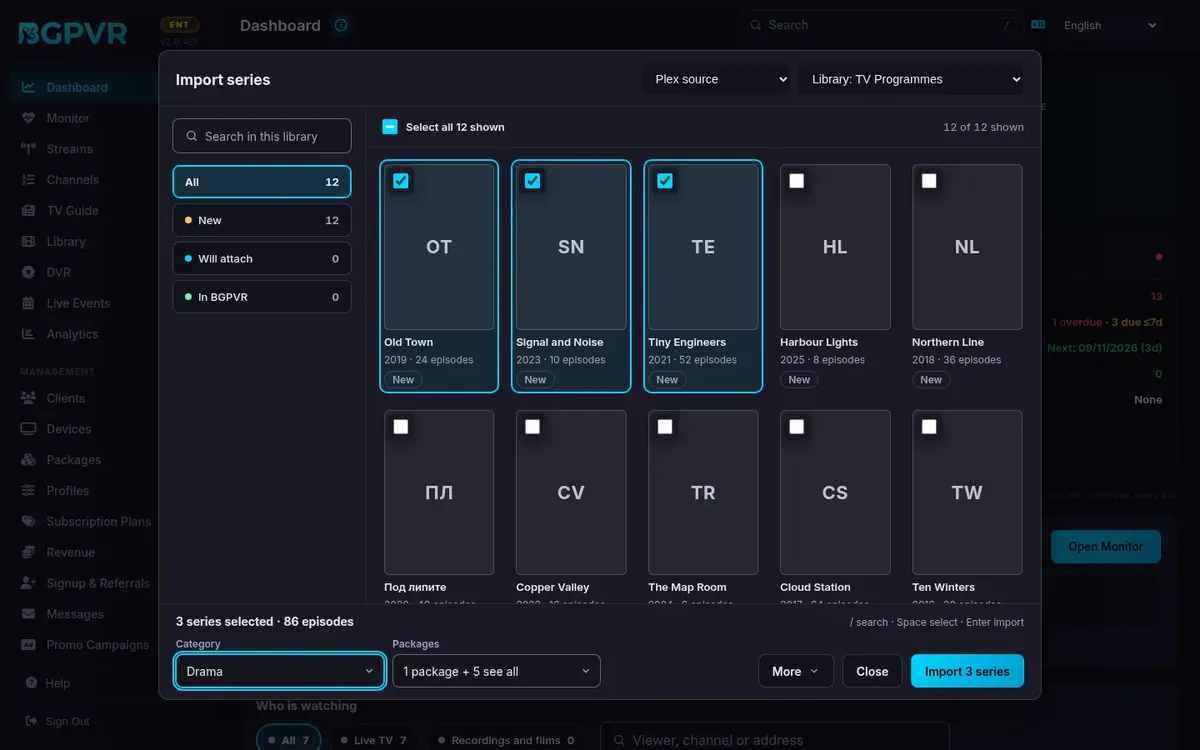
Library → Movies or Series → Import media. On the left are the search and the status filters (All, New, Will attach, In BGPVR). They count the titles loaded so far, 50 at a time, and the line "50 of 300 shown" says how many are loaded. On the right are the titles as posters; a title with no poster shows its initials. Tick titles, or tick "Select all N shown" and then "Select all N in this library". The bar at the bottom always shows what is selected (series, episodes, how many will attach to a title already in BGPVR) and holds Category, Packages, More, Close and Import. Category: find one of your categories, or type a new name and choose "Add category". A name that already exists, in any letter case, is offered instead; a name has 120 characters at most. A new category is public; tick "Private" and only the packages you tick see it. Packages: tick or untick the packages that get this category. It applies to the whole category, not only to these titles. Import series changes the packages' series categories, Import movies their film categories. Some packages are locked, with the reason shown: a package that sees every category stays so, a package keeps its only category, a package whose series follow its film categories, a category given by a tier below, and protected packages, which are never changed here. Nothing is saved until you press Import. Then the category and the package changes are saved in one step, before any title comes in. If the server refuses the change (for example because a package was changed meanwhile), nothing is imported and the reason shows above the bar. More holds Use TMDB details, Import all in this library (it asks first, in the page) and Re-sync. Keyboard: / searches, the arrows move between titles, Space selects, Enter imports, Esc closes a list. On a phone the window fills the screen and only the titles scroll. Changing packages needs the Packages right; without it the list only shows who sees the category.
One Library for films and series (2.9.447)
The sidebar has one entry, Library, in place of VOD Library and Series. It opens on two tabs, Movies and Series, and each tab has its own top bar: Movies has Sync Library, Import media, More and Add Folder; Series has Refresh, Import media, More and Add Series. Add URL, Upload File, Categories, Auto-Metadata, Check Links and Export M3U are under More on Movies; Auto-Match and Categories under More on Series. Delete selected and Clear appear on Series when series are ticked. Old links to either page still open the right tab.
Import a YouTube channel from Import media (2.9.447)
The Import Channel button is gone. Library → Movies → Import media → Source: YouTube channel holds the same fields, Scan and list of videos, and a channel you import is tracked as before. The window title follows the tab: Import movies or Import series, and the import always goes to the tab you opened it from. Since 2.9.456 the tracked channels are in Sources at the top of Movies (the window's link opens it); Pending Review stays at the bottom of Movies while videos wait. With the Media server import module off, Movies keeps Import media and the window shows YouTube only, with no Source field; Series then has no Import media and keeps Jellyfin under More.
Sources: everything the library syncs from (2.9.456)
Library → Movies (or Series) → Sources, next to Import media, opens one window with every source the library syncs from: media server libraries (Plex, Jellyfin), tracked YouTube channels and media folders. Each row shows how many films came from it, the last and the next sync, and has Sync now and Remove. Remove asks what happens to its films: "Stop tracking only" keeps them; "Also remove its N imported films" removes only the films that came from that source, in one step. Recordings and films from other sources are never removed, no file is deleted from disk, and a series library only stops syncing (its series stay). Which channel a YouTube film came from is learnt at each channel check, so for films imported before 2.9.456 press Sync now on the channel first; the count then includes them. A channel removed before 2.9.456 left its films behind: add the channel again (Notify for review avoids new imports), press Sync now, then Remove with its films.
Keep a Plex or Jellyfin library in sync (2.9.456)
In Sources, switch on Keep in sync for a library and choose how often: every 6 or 12 hours, nightly, every 2 days or every 7 days. Each sync imports the titles that are new on the server, updates the changed ones and marks titles the server no longer lists as gone (they stop playing; nothing is deleted, no file is touched). If the server does not answer or lists nothing, nothing is marked gone. The row shows the last sync and its result (new, updated, gone, failed). Sync now runs it at once. A film you delete by hand comes back at the next sync while Keep in sync is on: switch it off, or remove the library in Sources. The nightly re-sync option in Settings → Integrations still refreshes the titles already imported.
The recordings folder is not a media folder (2.9.460)
Adding a media folder is refused when it is the recordings folder (Recordings → Settings, or a DVR profile's storage path), a folder inside it, or a folder that holds it, for example /data/dvr, /data/dvr/Show or /data. The console says "This is where recordings are stored. Recordings already show under Recordings." Such a folder would import every recording as a film a second time. A trailing slash, ".." or a shortcut (symlink) to it are refused too.
The film window: view and edit in one place (2.9.468)
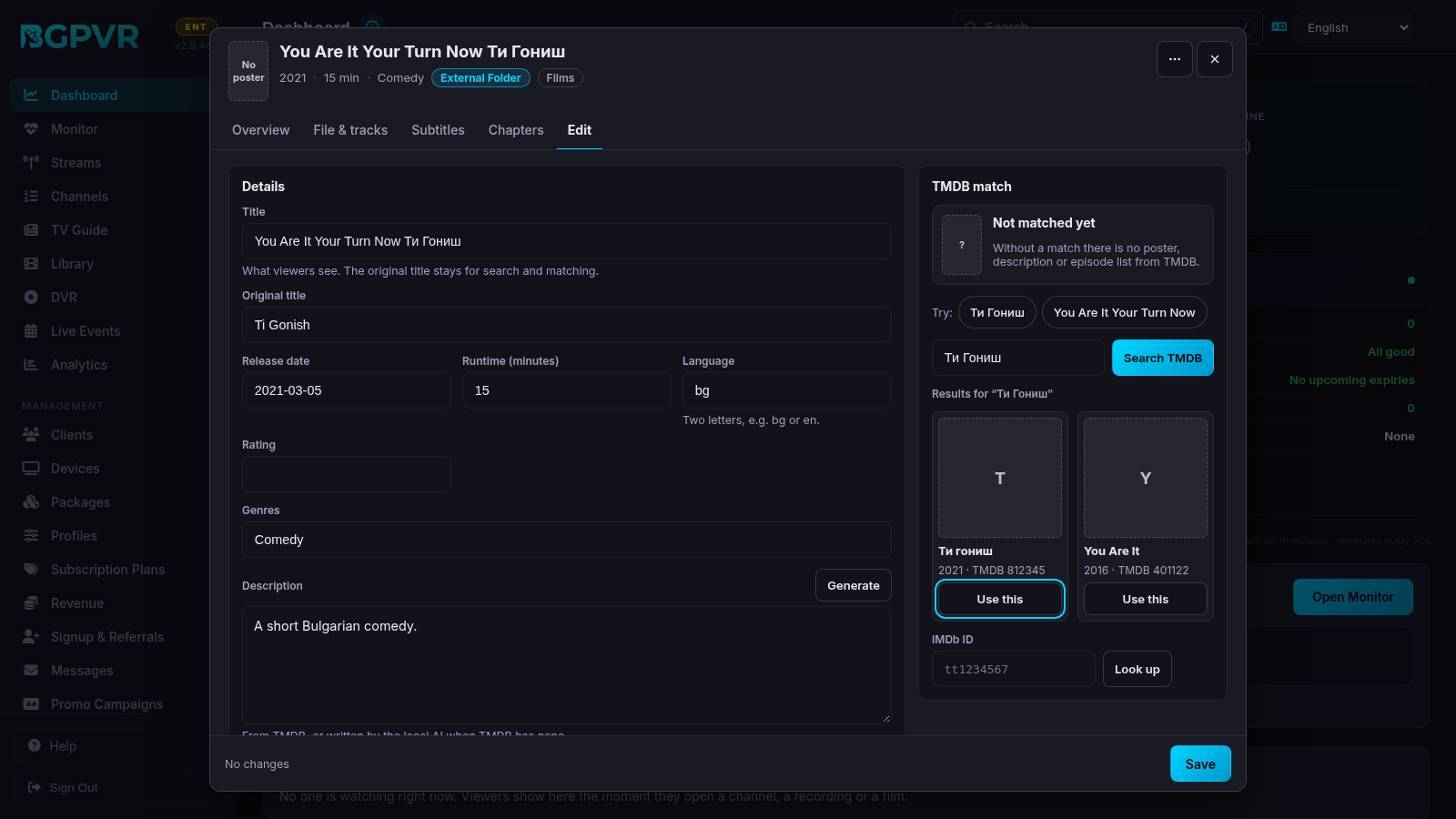
Click a film (or its pencil, which opens the same window on Edit). Tabs: Overview (poster, plays from, runtime, rating, year, who sees it, the preview with Open in a new tab), File & tracks (where it is stored, its format, and the stream link, which you can change and Save; an empty field keeps the current one), Subtitles (each with its delay and a Shown switch, one Save for all; Delete asks in the row), Chapters (Generate chapters with the local AI) and Edit: title (what viewers see), original title, release date, runtime in minutes, language, rating, genres, description (Generate: from TMDB, else the local AI), poster and backdrop addresses, the category and its packages (the Import picker; a package change applies to the whole category) and the TMDB match: Search TMDB shows the results with their posters, and a title in two scripts ("You Are It Your Turn Now Ти Гониш") offers its Cyrillic and its Latin part as two searches; Use this, or an IMDb ID with Look up, is applied when you Save. A film from Plex or Jellyfin now says Plex or Jellyfin, not Library. Delete film asks first; Also delete the file removes the file at its path on the server. Reading the tracks inside the file and the file's true length come in a later update.
Media server folders (2.9.482)
Settings → Integrations → Media server import → "Media server folders (read-only)": one folder per line. They are used only to find an imported film's or episode's file, never scanned into the library, so nothing is imported twice. A file at the same path here as on the media server needs no path map line; a path map line may point into these folders. Only folders on a read-only mount are used, never the server's data folder. Re-sync the import afterwards: the titles then play as local files.
Skip credits on films (2.9.484)
A film imported from Plex or Jellyfin brings where its credits start (Plex credits markers, Jellyfin Outro segments) with the import or the next re-sync. The web player then shows "Skip credits" when they start; it ends the film. The BGPVR Player app shows it from its next version.
Films and episodes play only from the library folders (2.9.485)
Every time a film or an episode is played (the apps, Web TV, MAG, Kodi, a Live+ channel), the suite checks its file again: it must exist and lie inside the VOD storage, the Series storage, a library folder, a media server folder or a recordings (DVR) folder, where a recording added to the library stays. A file anywhere else, or a link that points out of those folders, is not played: a title imported from Plex or Jellyfin then plays from the media server, any other title says its file is missing, and a Live+ channel skips it. The suite log names such a file once. Moved a library? Add the new folder under Sources (or Media server folders) and re-sync.
One rights confirmation for Plex and Jellyfin (2.9.494)
Before the first Plex or Jellyfin import, Keep in sync, Sync now or Re-sync (also the nightly one), an admin (or a staff login that manages settings) confirms the right to offer these titles to subscribers, as Plex's terms may restrict sharing outside the household: under Settings → Integrations & API → Media server import → Your rights to these titles, tick "These titles come from my own Plex or Jellyfin server. Plex's terms may restrict sharing outside your household; I confirm I have the right to offer these titles to my subscribers." and press Confirm. Who confirmed, when and the exact text are logged. Without it a Jellyfin import is refused like a Plex one ("An admin must first confirm the rights to these titles"). A Plex-only confirmation given before 2.9.494 still allows Plex imports, not Jellyfin ones. Withdraw confirmation stops new imports and Keep in sync until someone confirms again; titles already imported stay.
The Video menu shows what plays, and HLS (app 1.9.10)
Nothing to set up on the server. From app 1.9.10 the Video menu of a film or episode shows what plays: Auto · now: Original file, HLS or Light (720p). It has an HLS row when the server offers HLS (2.9.419 or later), the pick is kept for each film or episode, and Auto can switch to HLS after two stalls in the first minute and says so with the note Switched to HLS for a smoother picture. A recording shows the same now: label.
Live+ only categories (2.9.508)
Use them for demo clips or station idents that should play only on Live+ channels. Library → Movies → More → Categories: pick the category and choose Make Live+ only, or switch on Live+ only when you add a new category. The window asks first and says what changes; Undo stays on the screen for 10 seconds. A Live+ only category has its own badge and its own filter in the window. Outside Live+, viewers see nothing of it: its films and series are gone from Films, Series, search, Continue watching and My Account, and no account or package is given it. Any Live+ channel can use them as programmes, whatever the channel's packages. Show in Films and Series again brings the category back as it was before: a private category and what was given to accounts and packages work as they did. A Live+ only category can only be moved or merged into another Live+ only category, and the pickers that give categories to accounts and packages do not list it. When the window refuses a change, it says why, for example when the category is the only category of an account or package.
Watch out
- "Check Links" is destructive, not a report. It HEADs every stream_url starting with http (5 s timeout, 10 threads) and DELETEs every movie whose link errors or returns >=400. A temporarily unreachable host wipes those catalogue rows permanently. The toast reads "Checked N remote links. Removed M dead links."
- "Auto-Metadata" also REWRITES the title and the category — the new category is the first TMDB genre, created if it does not exist. Running it on a curated library reshuffles items between categories, which silently changes which subscribers can see them. Use the per-selection "Refresh Metadata" instead when categories matter; that path deliberately omits category from its UPDATE. Since 2.9.330 the title is Bulgarian first (TMDB's Bulgarian translation, else a Bulgarian film's original title, else English), and a Bulgarian (Cyrillic) title already in the library is never replaced by an English one; the same holds for "Refresh Metadata", a new TMDB match in "Edit / Metadata" and the imports. "Refresh Metadata" on a film that already has a TMDB match refreshes that match instead of searching TMDB by its name again.
- Deleting a category re-points its movies to category='Uncategorized' with category_id=NULL. Every restricted client/package filters on category_id, so those titles become invisible to anyone holding a category grant.
- The Library is Pro and up; Free does not include it. The library is capped by max_vod: 500 on Pro, 5000 on Business, effectively unlimited on Enterprise. "Sync Library" and "Add Folder" stop at the cap and return a warning ("VOD sync stopped at your license limit.") rather than failing — the extra files simply never appear.
- "Add Folder" resolves the path inside the container. A host path that is not bind-mounted returns "Folder not found: /abs/path" — fix the compose mount, then re-add.
- Storage paths (Settings): vod_storage_path defaults to /data/vod, vod_hls_path to /data/vod_hls, series_storage_path to /data/series. "Sync Library" walks the VOD root recursively, so any other media tree placed underneath it gets registered as movies.
- The browser-preview HLS cache under vod_hls_path is a full segment set per title watched. A daemon sweeps it every 6 h and deletes directories idle longer than vod_hls_retention_days (default 7). Before that pruner existed this cache reached ~138 GB and filled the disk (docs/disk_incident_2026-07-05) — check it first when /data runs out.
- YouTube scan/import needs yt-dlp in the container (otherwise "yt-dlp is not installed in the BGPVR container."), skips clips under 10 minutes and URLs already in the library, returns at most 500 videos per scan, and only attempts a TMDB match on the first 100. Since 2.9.494 yt-dlp runs without YouTube cookies and without a pinned YouTube player client (both worked around YouTube's own limits), so YouTube may refuse to give this server a video more often; the error then says so.
- The Library switch on the Modules page turns films and Series off for every caller (2.9.448). The licence feature 'vod' is a separate gate.
- Film length and first playback (2.9.349): the apps get a film's own length -- its YouTube length, the length you enter (whole minutes), or a recording's file length after its ad cut -- and TMDB's runtime only when that is unknown; BGPVR Player 1.8.6 also shows it in the film list (older apps do not get it there). The first time a film plays, a fast build (most YouTube films: 5-30 seconds) answers with the finished playlist when it is ready within a few seconds; otherwise the player starts at the beginning of the growing playlist and gets the full length, with seeking anywhere, as soon as the build finishes.